Debugging
An application built for the posix-gcc platform is an ordinary native
program, so the usual debugging tools apply to it. This chapter describes how
to debug such an application with gdb, both from the command line and from Visual Studio Code, in the Docker-based setup that the
installation chapter recommends. The Docker image ships gdb for host-side
debugging and gdb-multiarch for the embedded targets.
With the default release profile, debugging operates on the generated C, not
on the Termina source: breakpoints are set on the C functions and the inspected
variables are those of the generated code. The translation scheme makes the
correspondence direct. A procedure or action named increment of a class CCounter becomes the C
function CCounter__increment, fields keep their names inside the generated
structs, and each task's thread runs a function named after its class, such
as termina__task_entry__CSamplerTask. The generated sources are in the
output/src tree.
Debugging from the command line
The build for posix-gcc compiles with debug information and without
optimization (-O0 -g3), so the binary is ready for the debugger as it comes
out of make. After a build, the program runs under gdb directly:
A Termina application is multi-threaded: one thread per task, plus the
runtime's own. The gdb commands info threads and thread <n> navigate
them, and a breakpoint on an action function stops the program on whichever
task thread executes that action.
Debugging the Termina source
Setting profile: debug in termina.yaml makes the transpiler precede each
generated statement with a #line directive that names the Termina file and
line it comes from. The debug information of the binary then refers to the
.fin sources instead of the generated C, so a breakpoint can be placed on a
line of a module:
The same profile defines TERMINA__PROFILE__DEBUG in the generated
config.h. With this macro defined, the runtime stops at a breakpoint before it
restarts the system, so the state that led to the restart, such as an
exception, can still be inspected. On posix-gcc the runtime prints the backtrace and raises
SIGTRAP, which stops the program under gdb and terminates it when no
debugger is attached. The default profile, release, emits neither the #line
directives nor the macro.
Debugging inside the Dev Container
For the container-based workflow, debugging requires two adjustments to the
configuration shown in the installation chapter, both in
.devcontainer/devcontainer.json. Docker blocks the ptrace system call by
default, which gdb needs to attach to a process, so the container must be
granted it:
{
  "name": "Termina dev container",
  "image": "ghcr.io/termina-lang/docker-termina:latest",
  "runArgs": ["--cap-add=SYS_PTRACE", "--security-opt", "seccomp=unconfined"],
  "customizations": {
    "vscode": {
      "extensions": ["termina-lang.termina", "ms-vscode.cpptools"]
    }
  },
  "remoteUser": "vscode"
}
The ms-vscode.cpptools extension supplies the debugger integration for the
generated C. With the container rebuilt, a launch configuration in
.vscode/launch.json runs the compiled binary under gdb:
{
  "version": "0.2.0",
  "configurations": [
    {
      "name": "Debug (posix-gcc)",
      "type": "cppdbg",
      "request": "launch",
      "program": "${workspaceFolder}/output/bin/myapp",
      "cwd": "${workspaceFolder}/output",
      "MIMode": "gdb",
      "setupCommands": [
        { "text": "set startup-with-shell off" }
      ]
    }
  ]
}
In a container without a controlling terminal, gdb fails to launch the
program with the message "GDB failed to set controlling terminal"; the
set startup-with-shell off command avoids that failure. Breakpoints
are then set by clicking in the generated C files under output/src, and the
debugging session behaves as it would for any C program.
Debugging on a board
On the embedded platforms, gdb-multiarch runs in the container and controls
the board through the GDB server of the board's debug tool. The server runs on
the host, which has the USB connection to the debug probe of the board:
| Platform | GDB server on the host | Default port |
|---|---|---|
rtems5-leon3sf-nexysa7 |
GRMON | 2222 |
rtems6-zynq7000-pynqz2 |
hw_server of AMD Vitis |
3000 |
freertos10-stm32l432-nucleol432kc |
ST-LINK_gdbserver of STM32CubeCLT |
61234 |
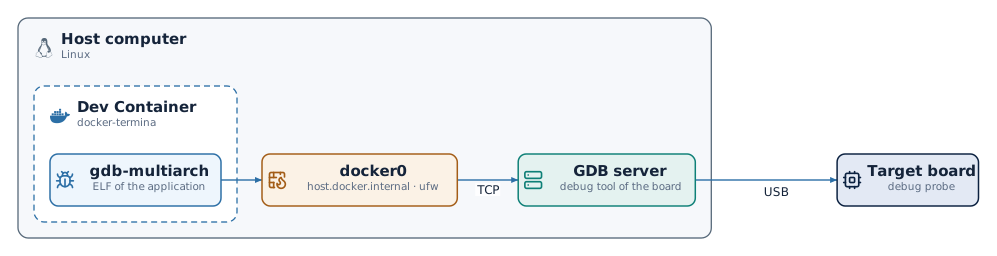
The .devcontainer/devcontainer.json that termina new --vscode generates
starts the container with --add-host=host.docker.internal:host-gateway,
which maps the name host.docker.internal to the address of the host on the
docker0 bridge of Docker. For these platforms, the generated
.vscode/launch.json connects gdb-multiarch to the GDB server at that name
and at the port of the table. Before each session, VS Code asks for the
address of the server, with that one as the default, so that a server on
another machine or port can be given. Once connected, the load command writes
the program to the board.
On a Linux host with ufw, the default policy drops the connections that come
from the containers through docker0, and gdb-multiarch cannot reach the
server. The following rule opens the default ports of the three servers on the
bridge:
A server started on another port needs that port in the rule.
Keeping the container image current
The following behaviors of the container tooling can leave a debugger or toolchain different from the one expected:
- Pulling a newer image with
docker pulldoes not affect an existing Dev Container, which continues to run on the image it was created from. After an image update, the container must be recreated with the Dev Containers: Rebuild Container command. - The
latestandMAJOR.MINORtags are mutable: they move with each release. A project that must behave identically over time, such as the material of a course, should pin the exact release tag, for instanceghcr.io/termina-lang/docker-termina:v0.6.0.